
Follow the shape of the flow.
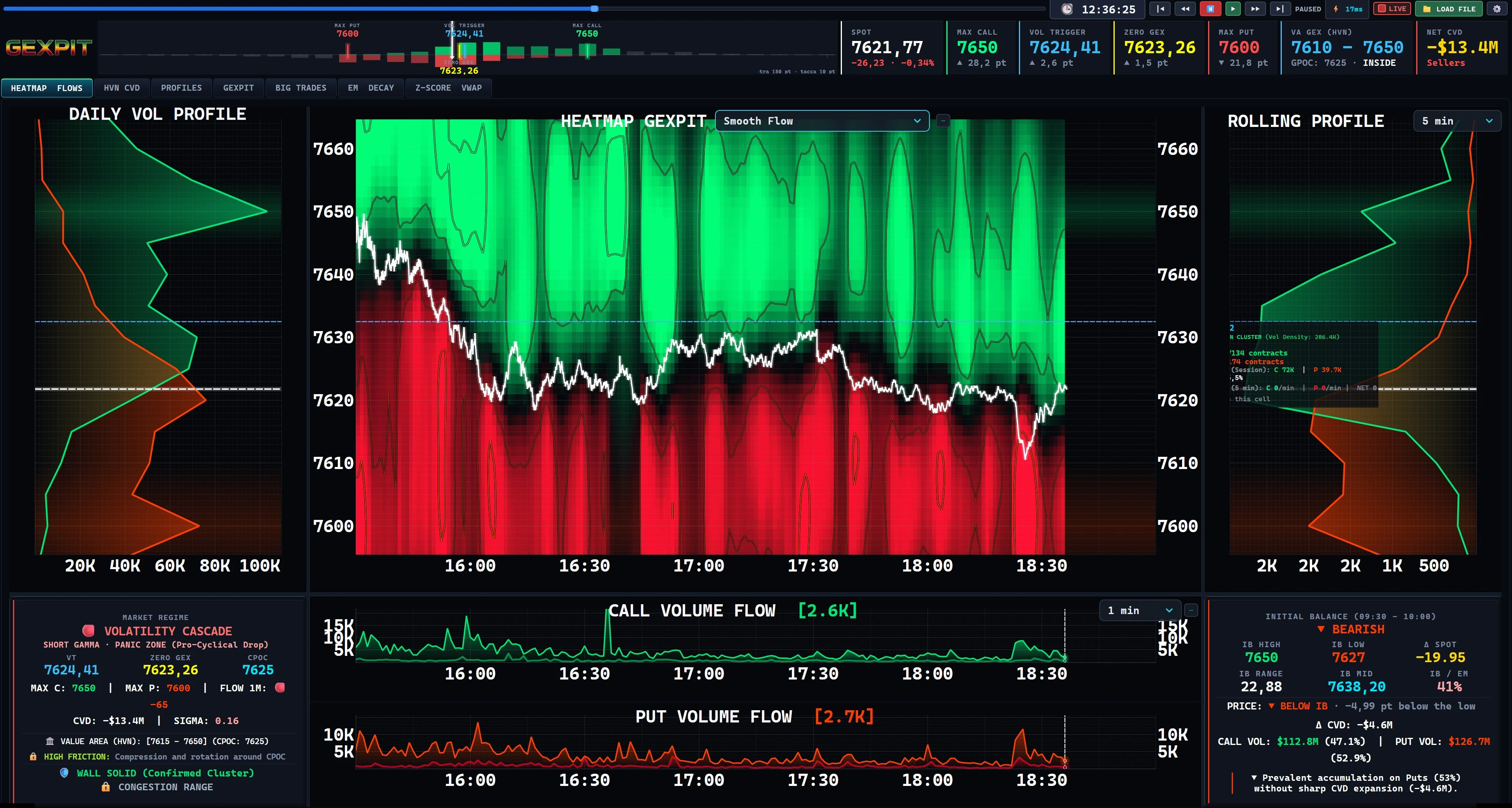
A smoothed view makes the distribution easier to follow across strikes and time. Smoothing changes the display, not the underlying observations.
Track SPX options flow, compare recent volume and follow Gamma exposure. Live and in replay.
Recorded platform demonstration. Explore the tools below, then watch complete sessions on YouTube.
Live analysis and replay for SPX options and ES futures traders. Focused on SPX 0DTE options: contracts that expire the same day.
Follow a simple path through the session. Each section starts with what you can see, with technical details available when you need them.
Screenshots show the updated platform and can be enlarged. The two demonstration videos show an earlier interface.
Locate Call and Put volume by option strike and compare it with the SPX price.
Explore flow → 02 / COMPARECompare recent trading volume with the full session to see where activity is building now.
Compare volume → 03 / REVIEWReturn to a recorded point, pause and examine price, flow and Gamma together.
See replay →Already use Gamma exposure? Compare Dynamic GEX with earlier readings →
Compare Call and Put activity with the SPX price, on the same timeline.
Start with Combined Volume: bubbles show activity at each option strike (exercise price) over time. The price line shows where SPX is trading, also called spot. Switch views to separate Calls and Puts or compare which side has more volume.
Choose from 11 heatmap modes. Gamma views include GEX Linear, Wall Activity, GEX Velocity and GEX Absolute. Volume views include Combined Volume, Smooth Flow, Dominance, Delta Dominance, Call Only, Put Only and Dual Panels.
Measure activity by contract count, premium notional (option price × contracts × contract multiplier), or Delta weighting (which accounts for sensitivity to SPX price changes). Moneyness filters select strikes by their relationship to spot. Volume describes activity; Gamma views model exposure.
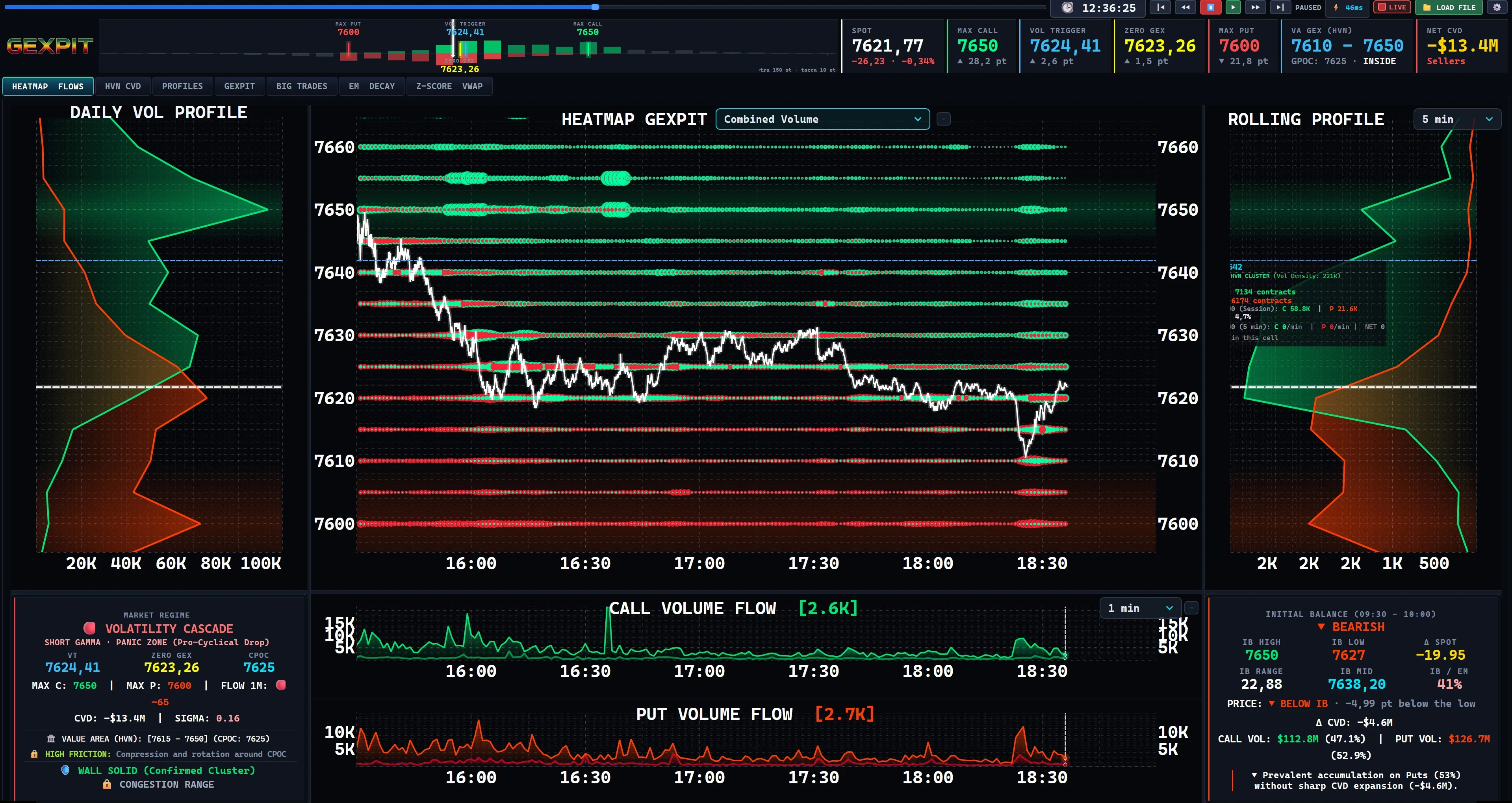
In the Combined Volume screenshot above, compare three visible elements:
This comparison helps you separate the session total from recent activity. It does not establish why price moved or predict its next direction.
Compare dominance and separate Call / Put activity while keeping the same market context.
Select a view. Click or tap the image to enlarge it.
A smoothed view makes the distribution easier to follow across strikes and time. Smoothing changes the display, not the underlying observations.
Compare Call and Put activity in the same map: green marks Call dominance and red marks Put dominance. This is a volume comparison, not a buy or sell instruction.
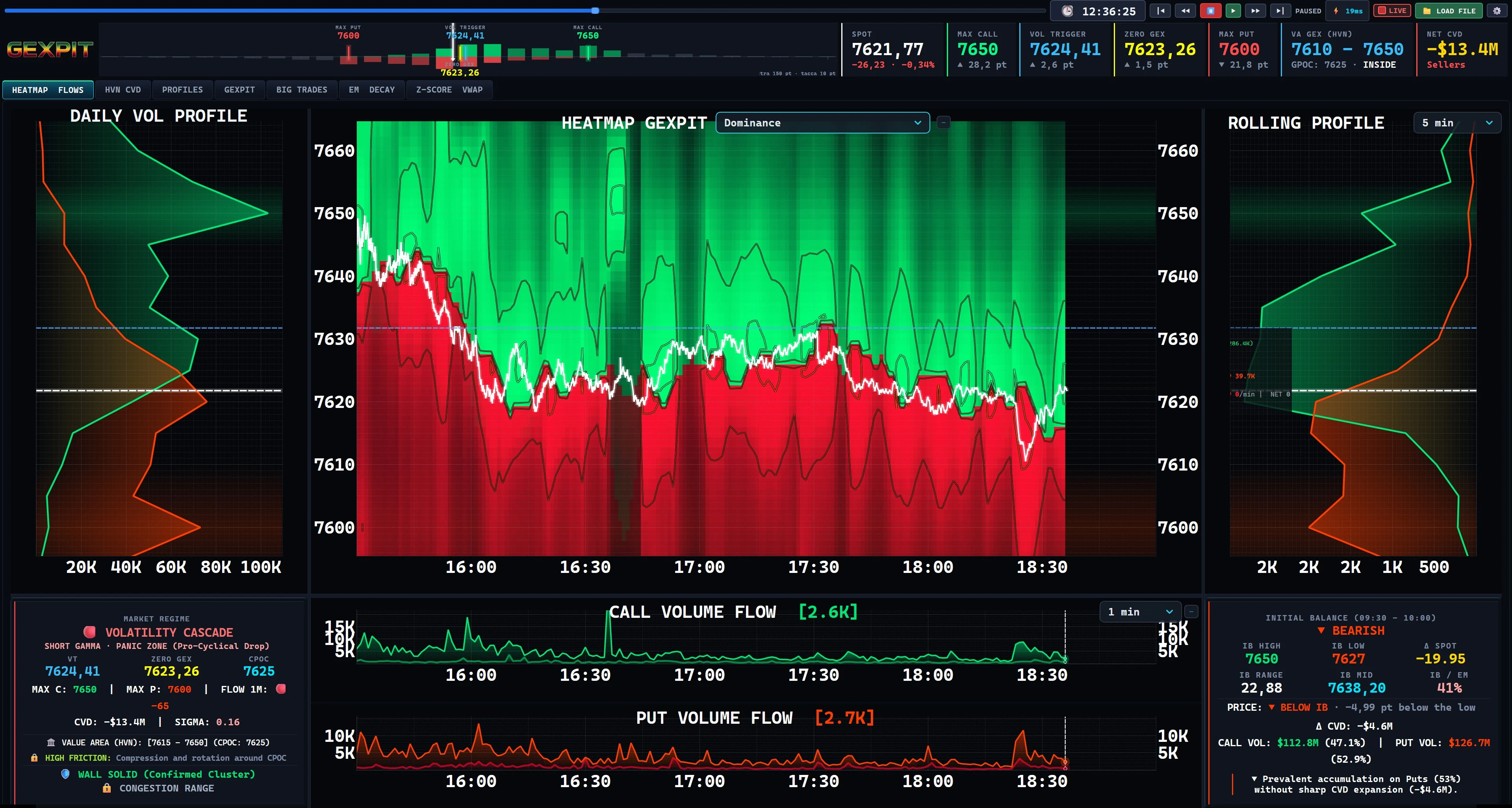
Weight option volume by absolute Delta to compare activity on a different basis. Read it alongside unweighted Dominance to see how the picture changes.
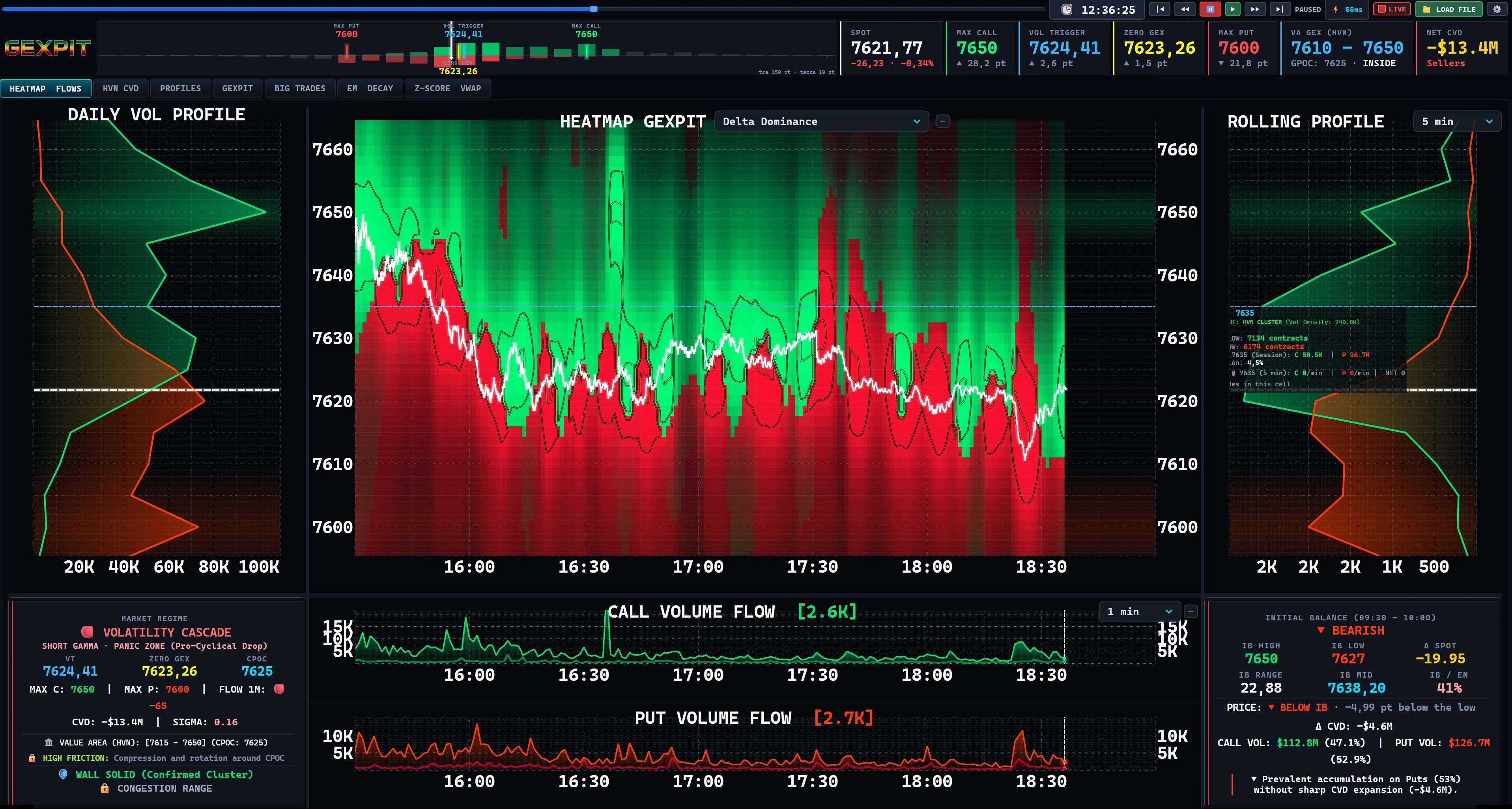
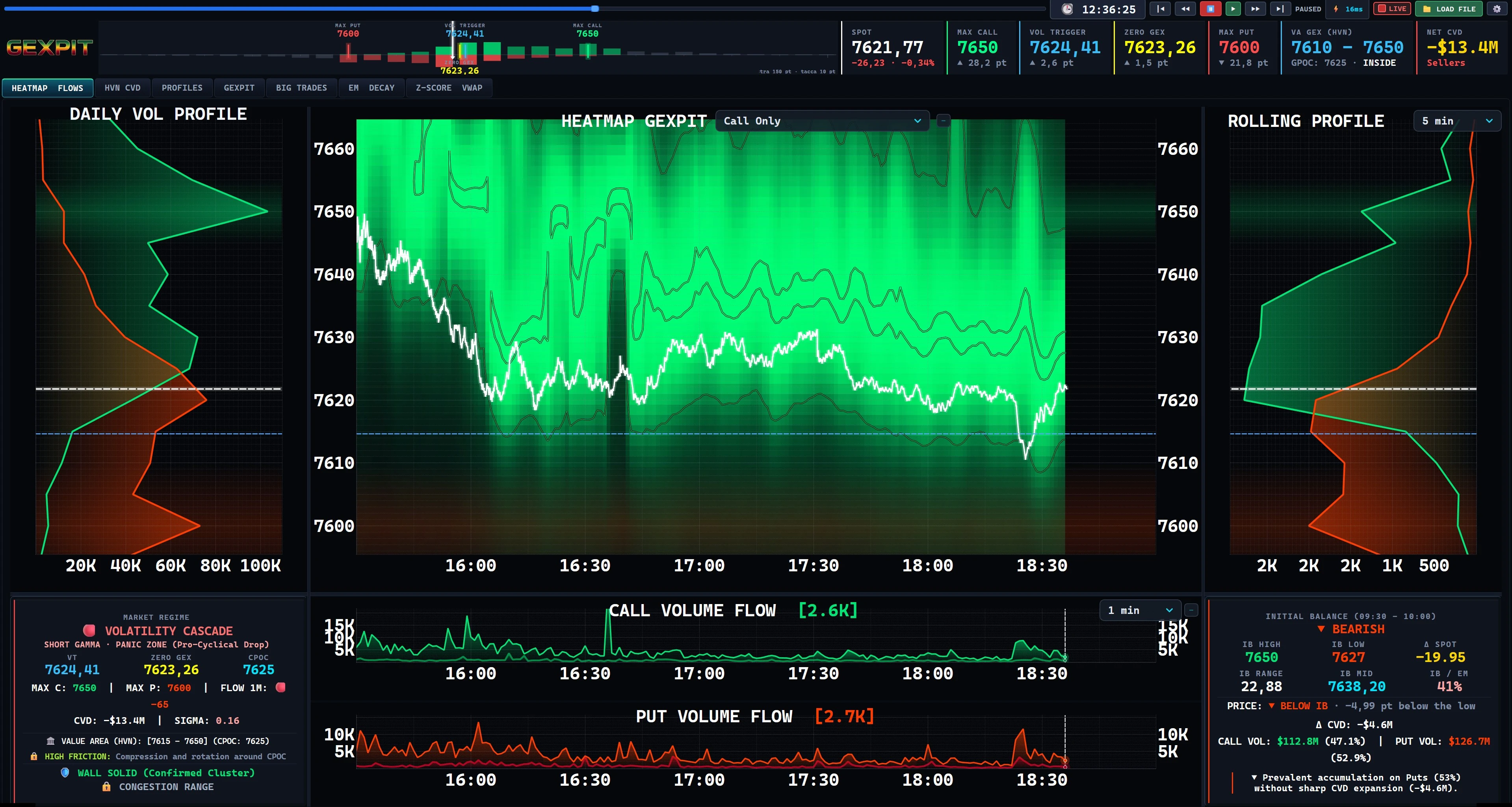
Remove the Put layer and inspect where Call volume concentrates. Keep price, the daily profile and the rolling profile in view.
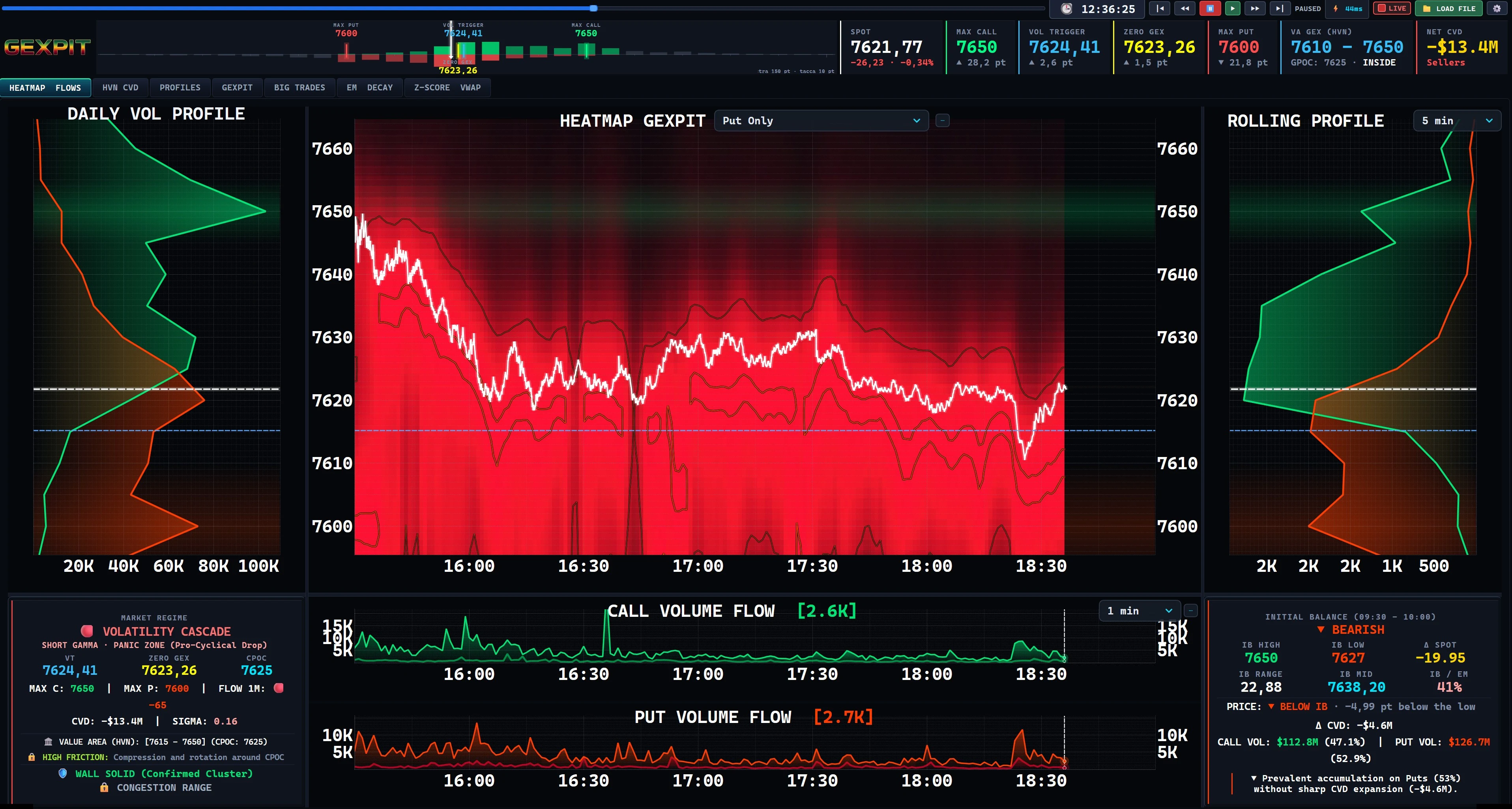
Examine Put activity on its own to locate concentrations that can be harder to read in a combined view.
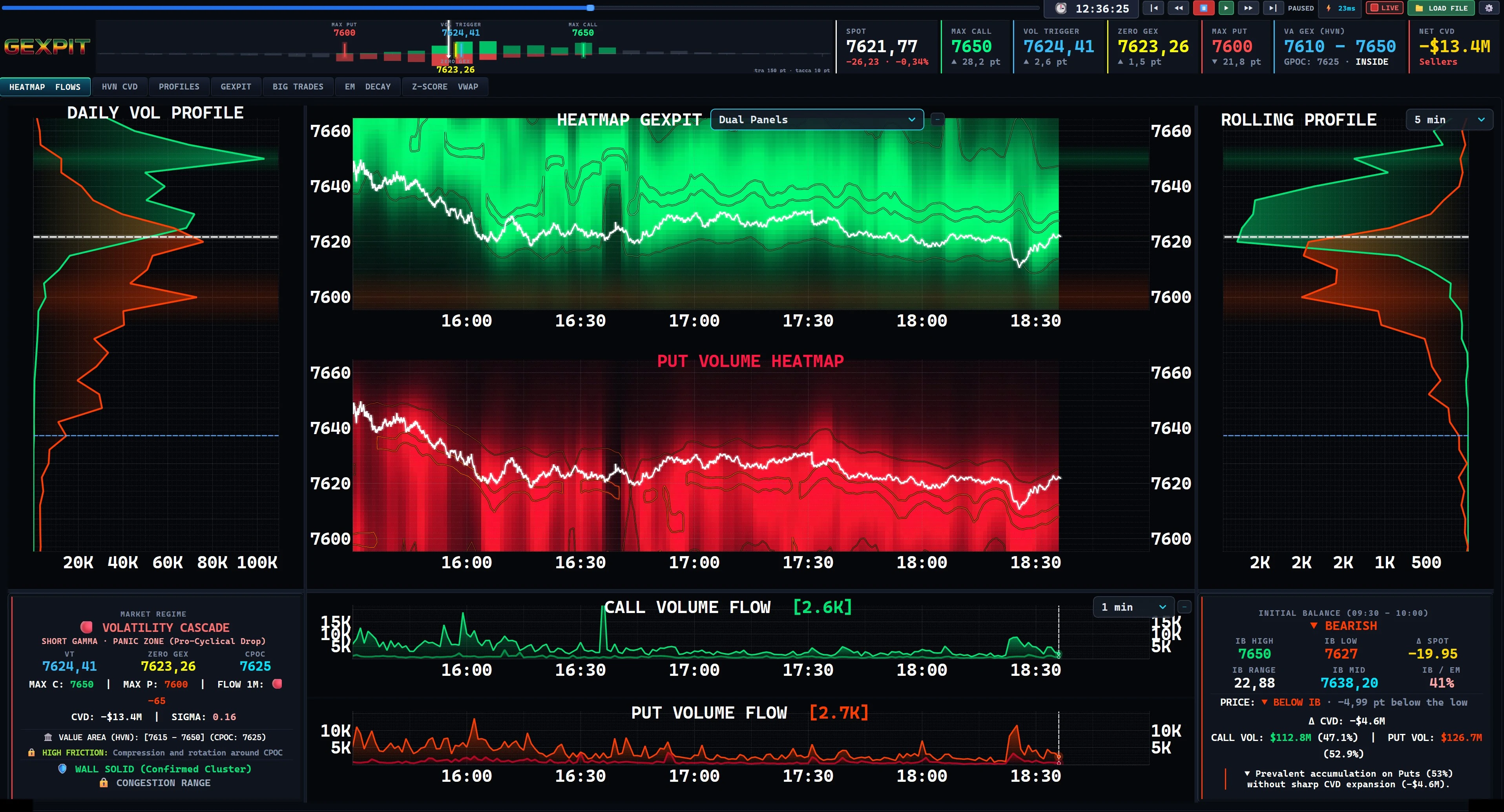
Two synchronized heatmaps separate the sides while keeping a shared color reference. Compare their intensity at the same strike and time.
Choose the Gamma view that matches your question: relative structure, recent activity, recent contributions or fixed scale.
Select a view. Click or tap the image to enlarge it.
Read the cumulative net Gamma distribution by strike. The relative color scale emphasizes the structure within the view; it is not a fixed measure across sessions.
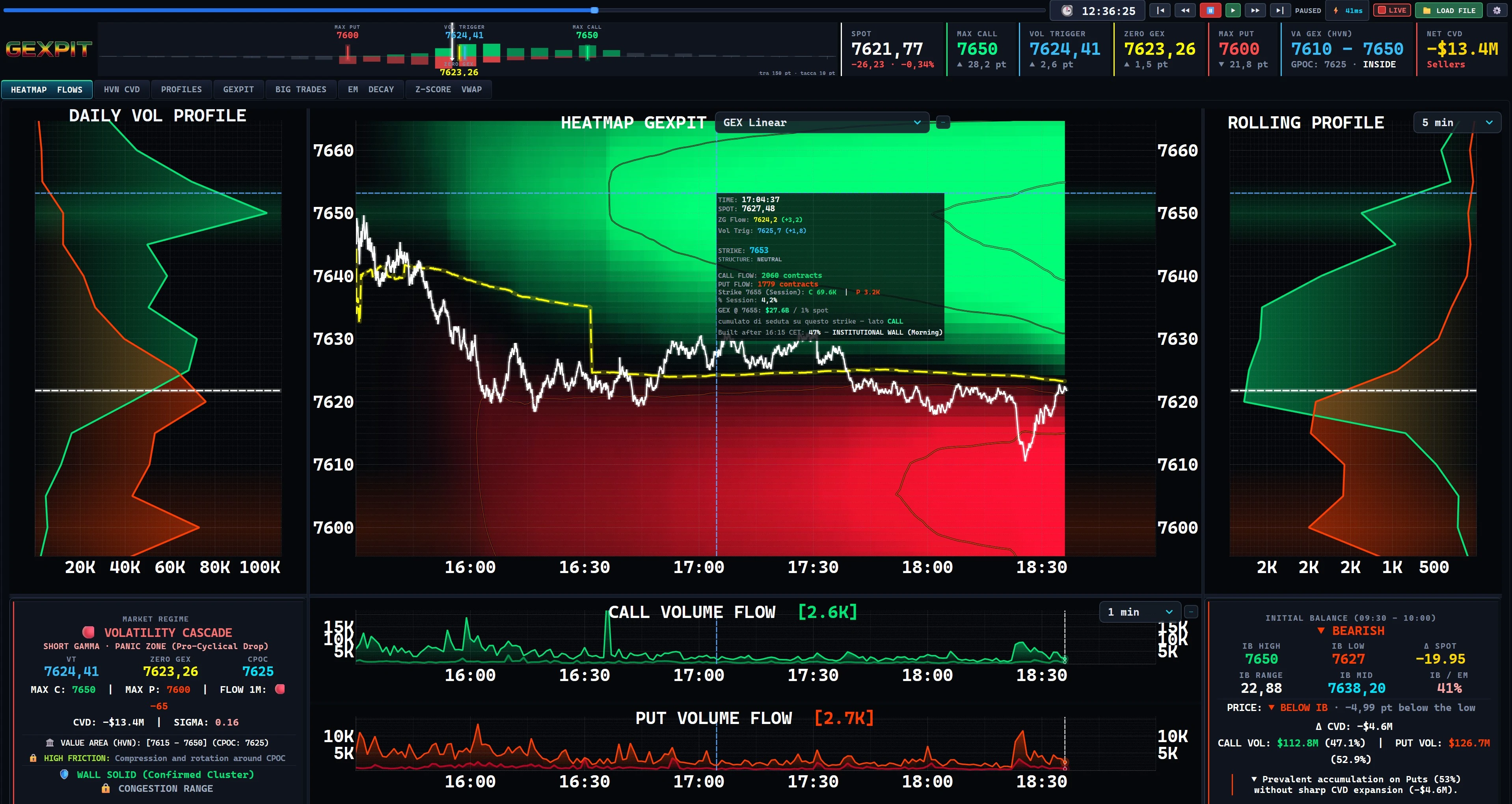
Combine the cumulative GEX structure with recent traded volume. Compare prominent levels with the activity still taking place there.
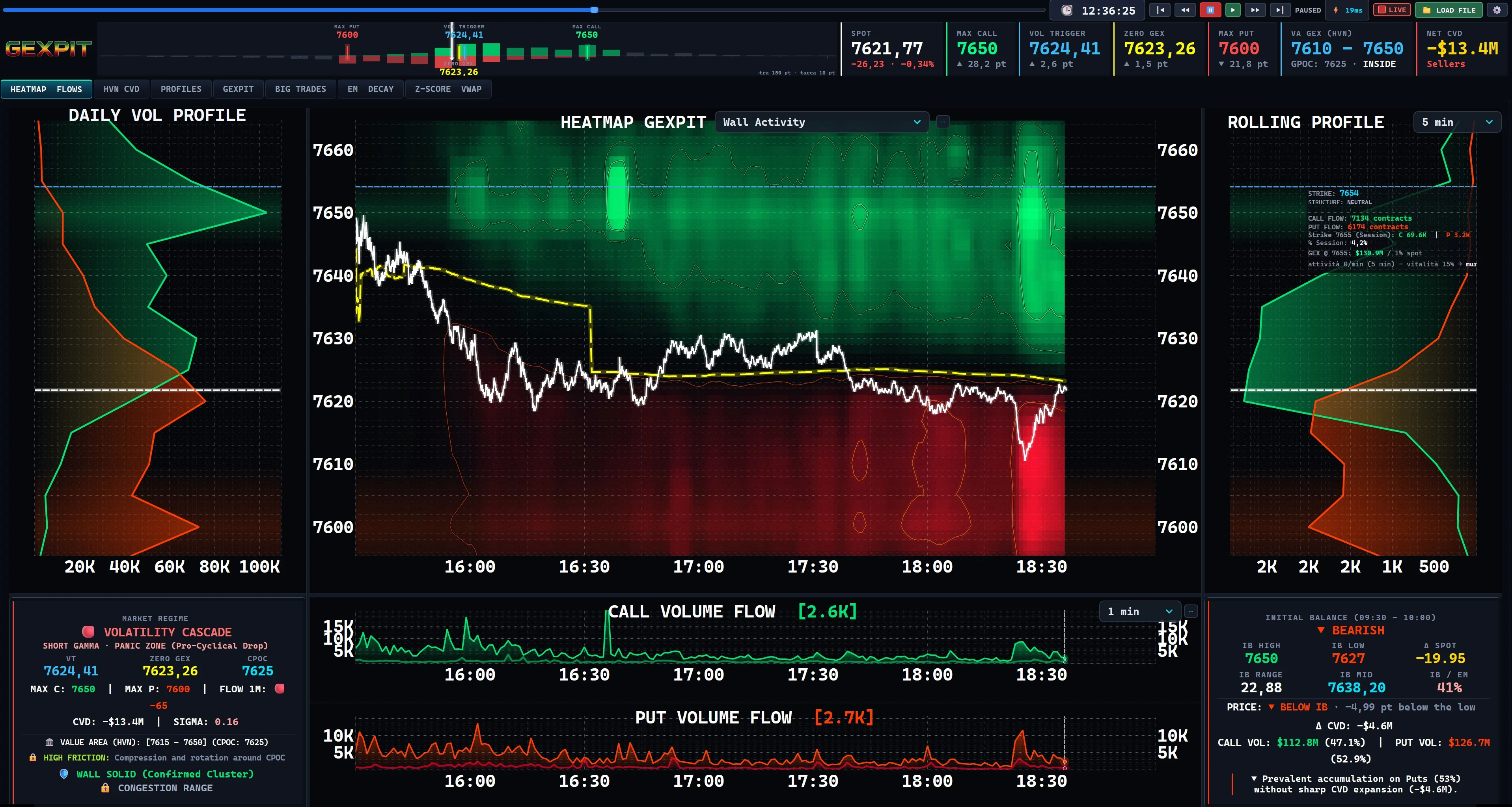
Focus on Gamma entering during the selected window. Green represents Call contributions and red Put contributions; red does not mean existing Gamma has been removed.
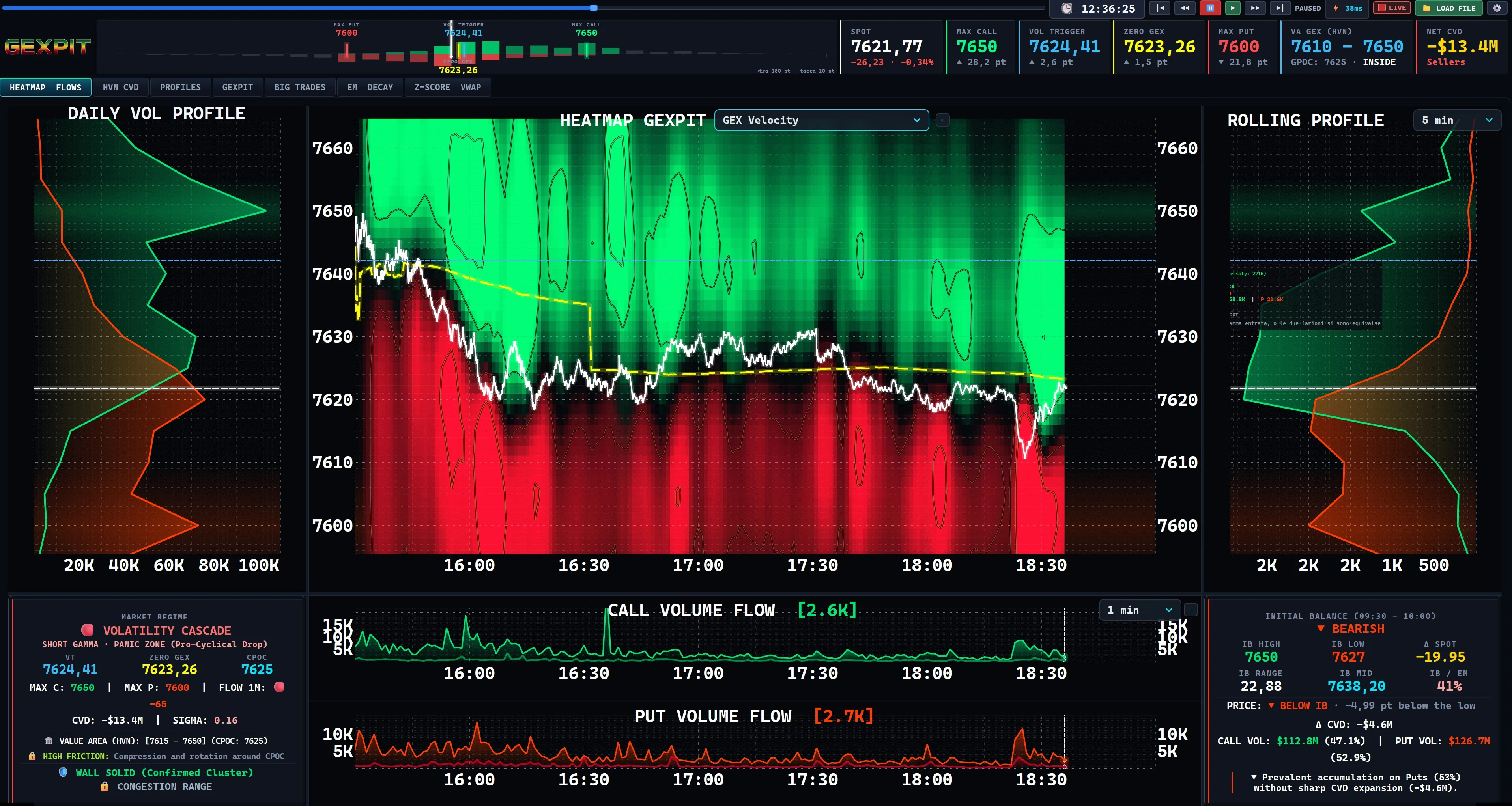
Use a fixed logarithmic scale for GEX magnitude. Compare values across time or sessions without each view rescaling to its own brightest cell.
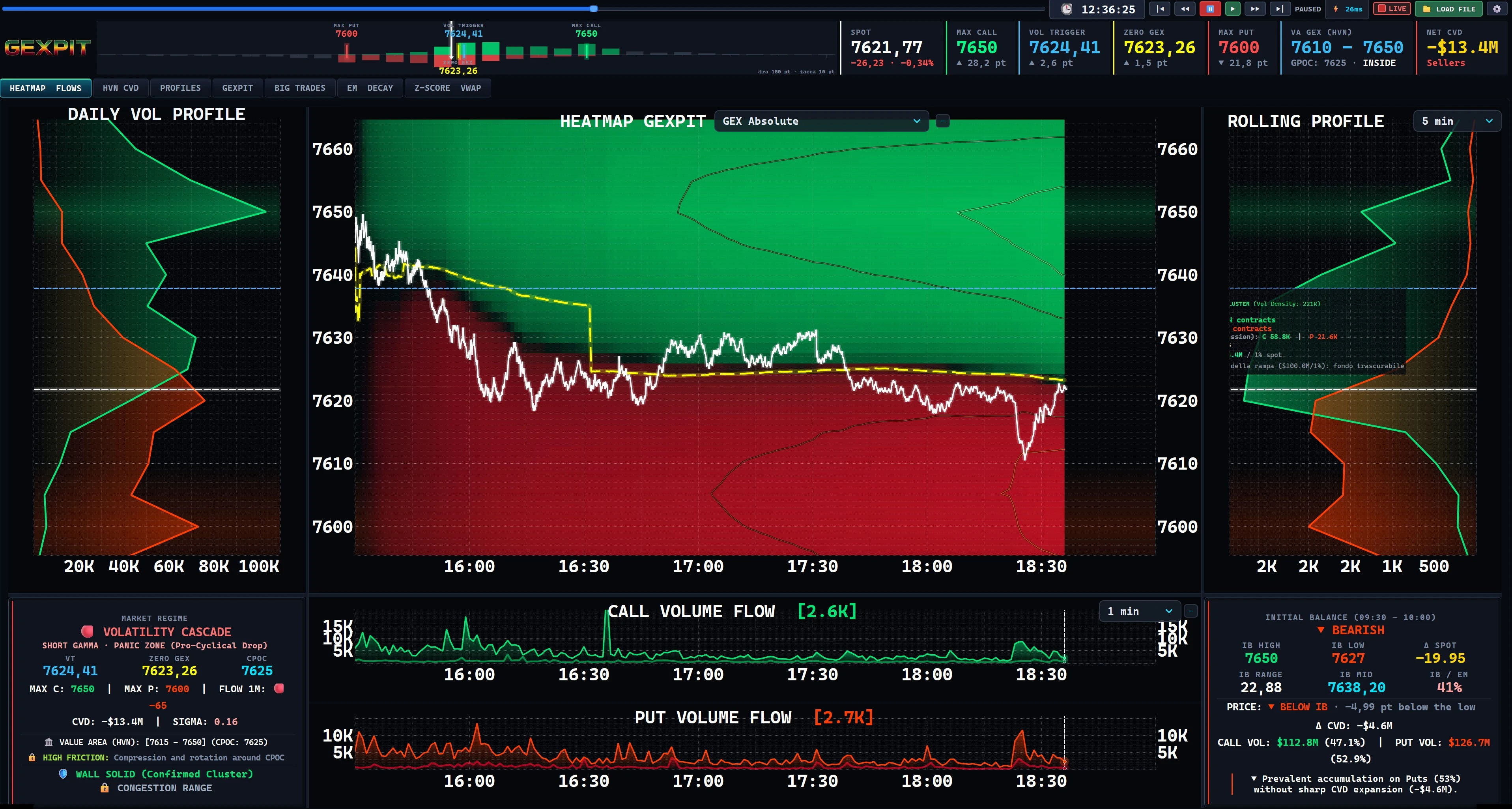
Start with the available option strikes, then filter the activity by size and distance from the SPX price.
Select a view. Click or tap the image to enlarge it.
Filter activity by contract volume or premium notional, then compare its location with spot. Separate Call and Put flow panels retain the broader context.
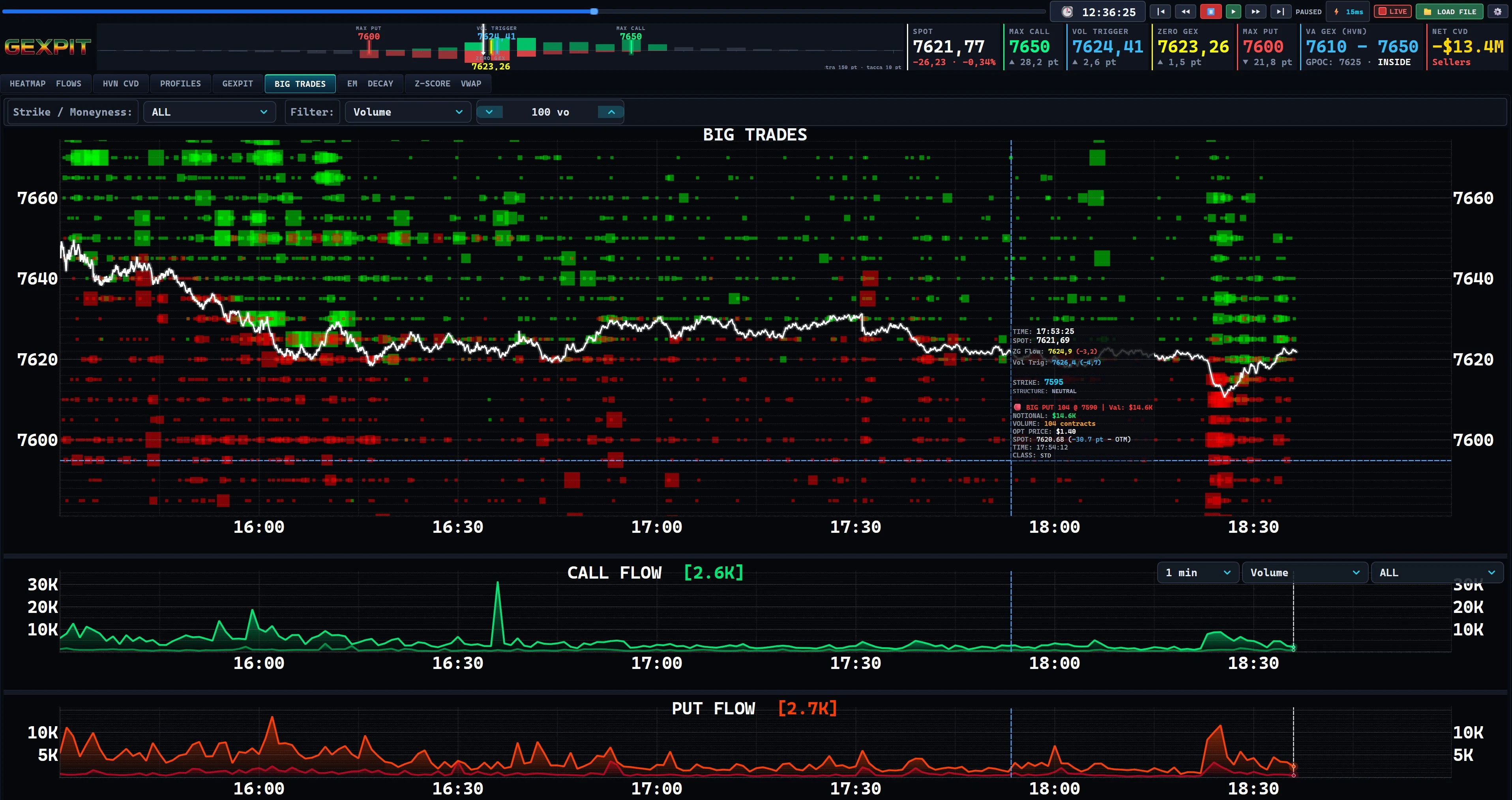
NTM (near the money) keeps strikes within ±5 points of spot. ALL shows all available strikes; ITM and OTM select in the money and out of the money options. A large volume reading alone does not identify the trader or show whether it belongs to a position with several option legs.
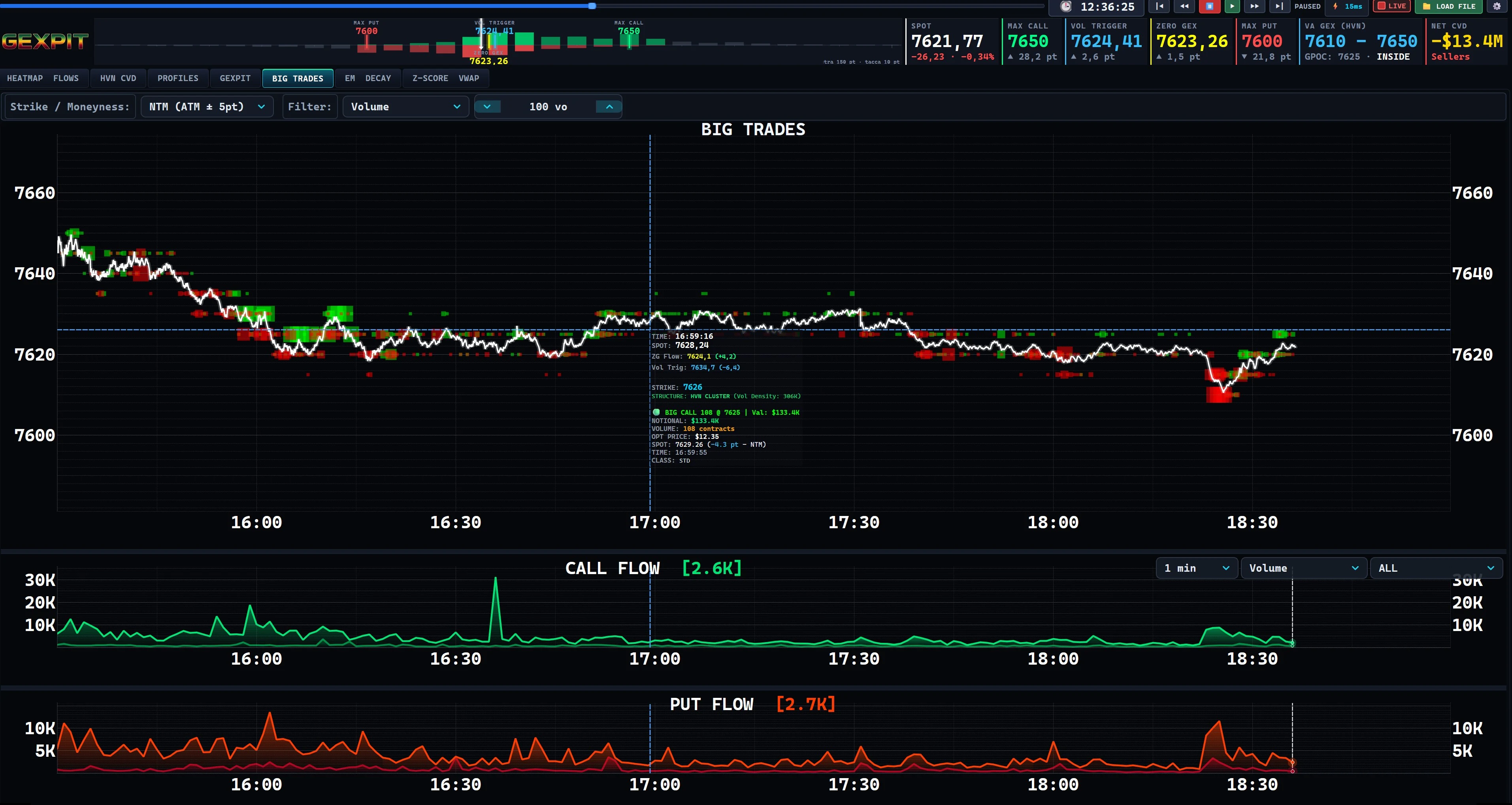
A busy strike earlier in the day may be quieter now. Compare the daily and rolling profiles to see where recent volume concentrates.
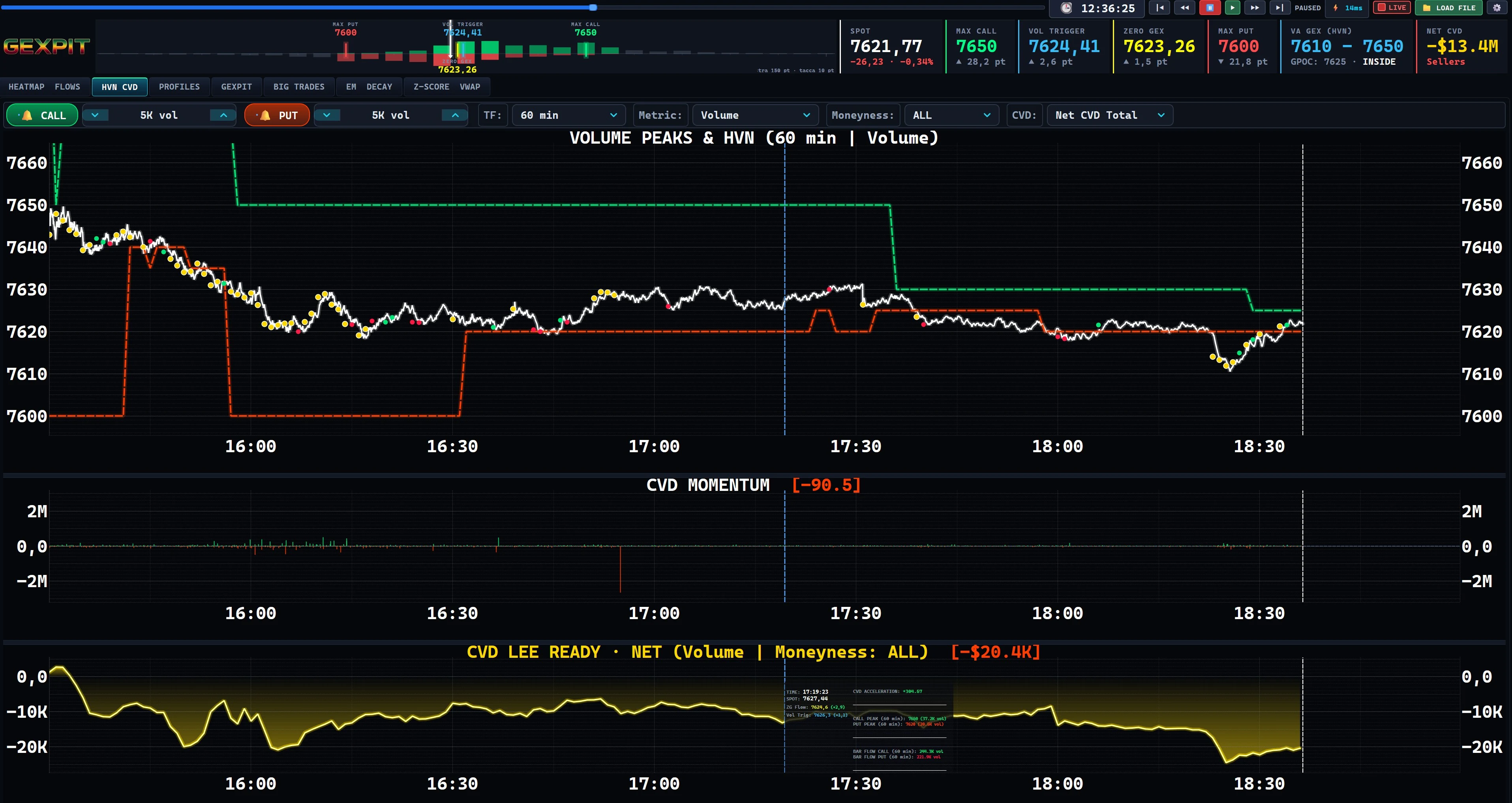
Read Call and Put CVD (Cumulative Volume Delta) alongside price: each curve tracks the cumulative balance of estimated buying and selling activity. CVD Momentum shows how that balance is changing. The screenshot uses contract counts; Monetary CVD weights the flow by option premium notional.
The Rolling Volume Profile offers windows from 1 minute to 120 minutes. Rolling volume peaks on spot can be compared over intervals from 1 minute to the full session.
Switch between contract volume, premium notional and Delta Flow, with separate Call/Put or net CVD views. Monetary CVD weights classified flow by option premium notional; classification is an estimate, not a record of participant intent.
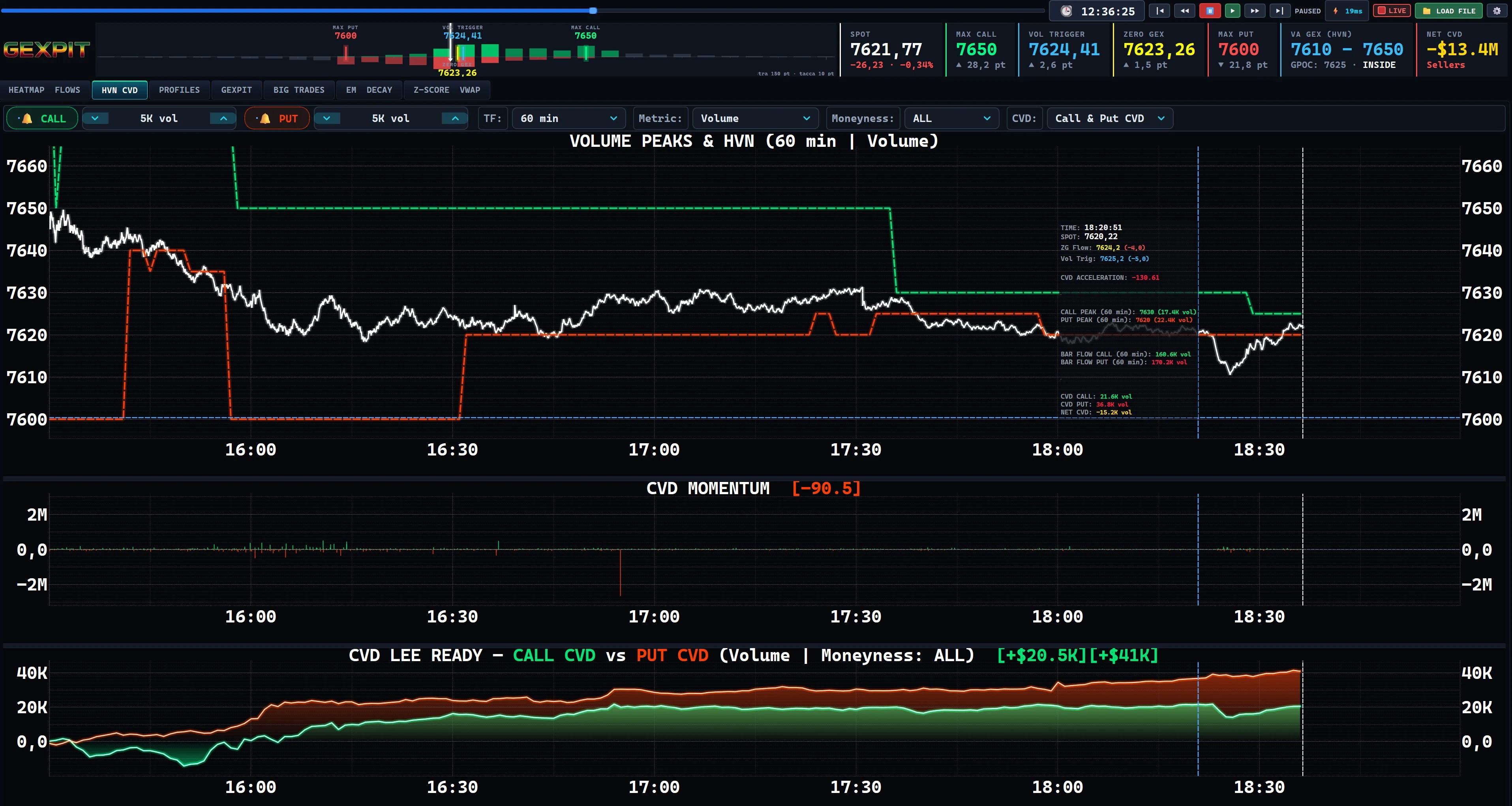
Enable volume alerts on the price chart to locate bursts of activity. Switch to Net CVD for a combined reading, then compare its cumulative curve with CVD Momentum to examine the recent change. The separate Call and Put view remains available for a closer look.
See how the modeled exposure at each strike changes as SPX price and time evolve. Earlier markers appear when the session history is available.
Gamma measures how an option's sensitivity to price changes as SPX moves. GEX combines Gamma with activity to map exposure across strikes. Dynamic GEX recalculates that exposure using the current model Gamma; compare it with earlier readings or inspect Calls and Puts separately.
Dynamic GEX revalues the full session volume at each strike with current model Gamma, using spot and the ATM Expected Move. It uses a flat ATM volatility assumption across strikes. Classic Net GEX instead accumulates flow contributions using Gamma at the time each contribution was recorded.
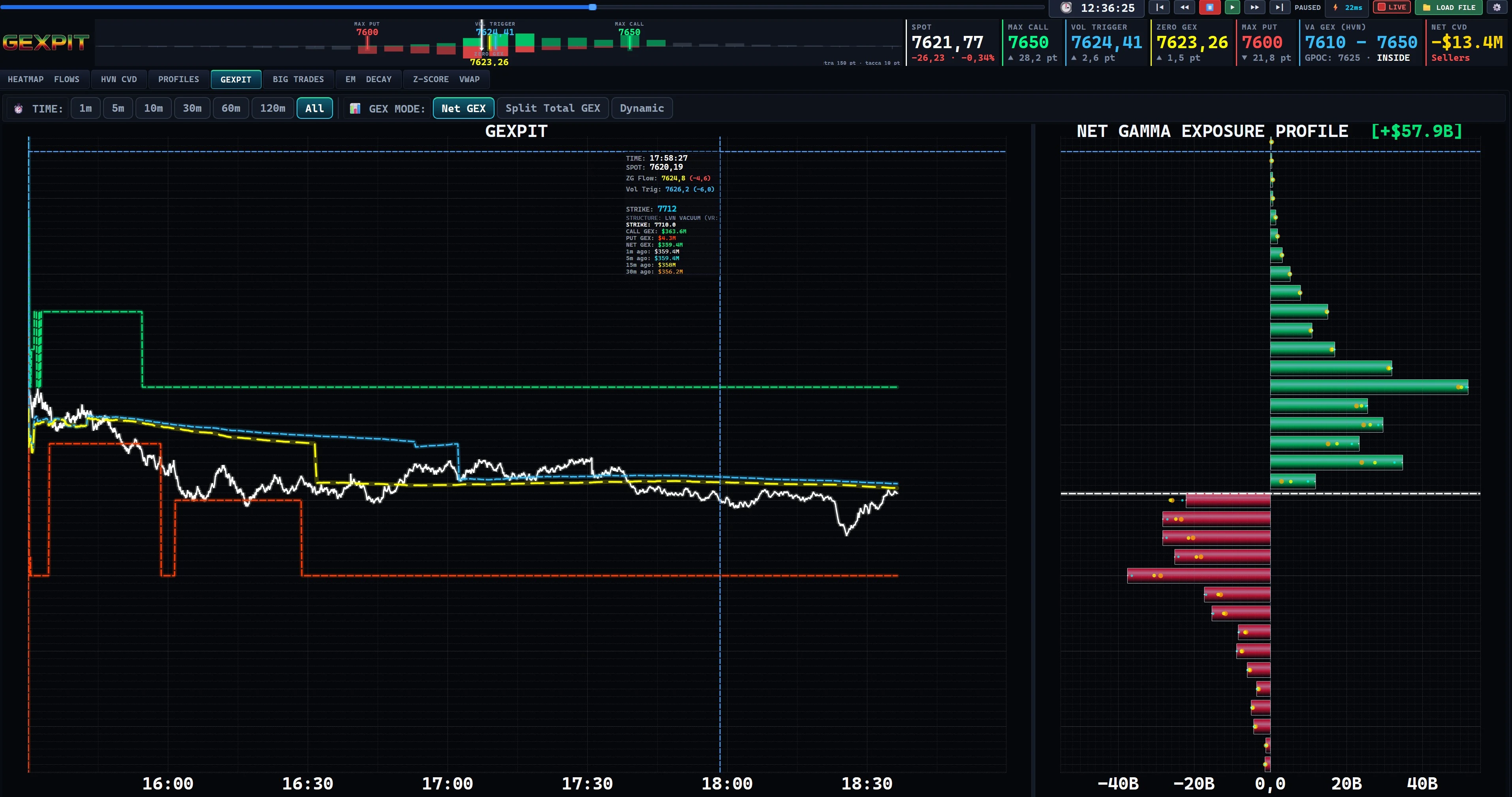
Net GEX and Dynamic GEX offer lookback markers at 1, 5, 15 and 30 minutes when that history is available. Split Total GEX does not use these markers. Dynamic GEX always uses the full session volume. Plotted references include Zero Gamma, Call Wall, Put Wall and Vol Trigger.
These are model-based references. They do not directly reveal dealer inventory or establish that a price level must hold.
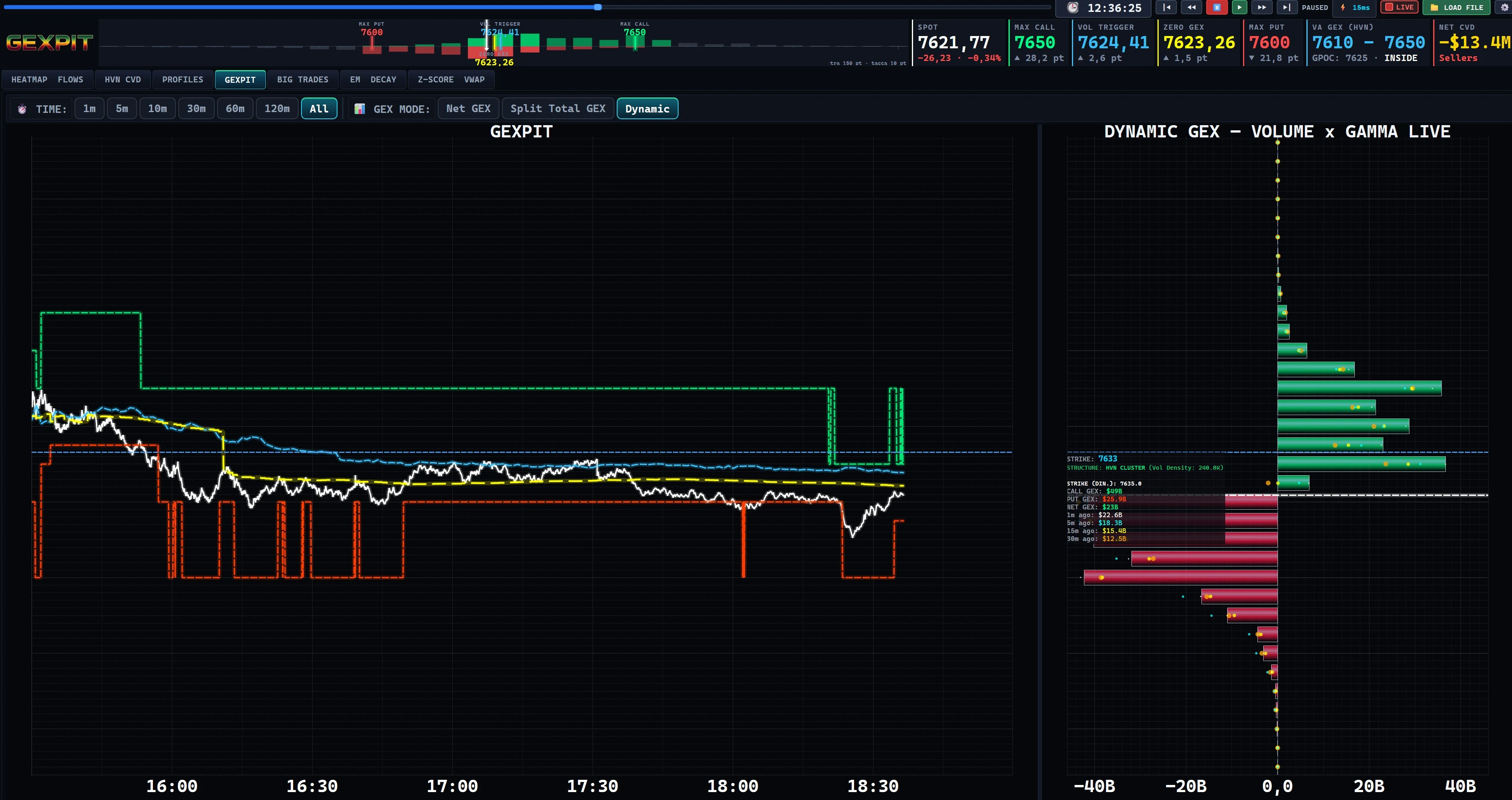
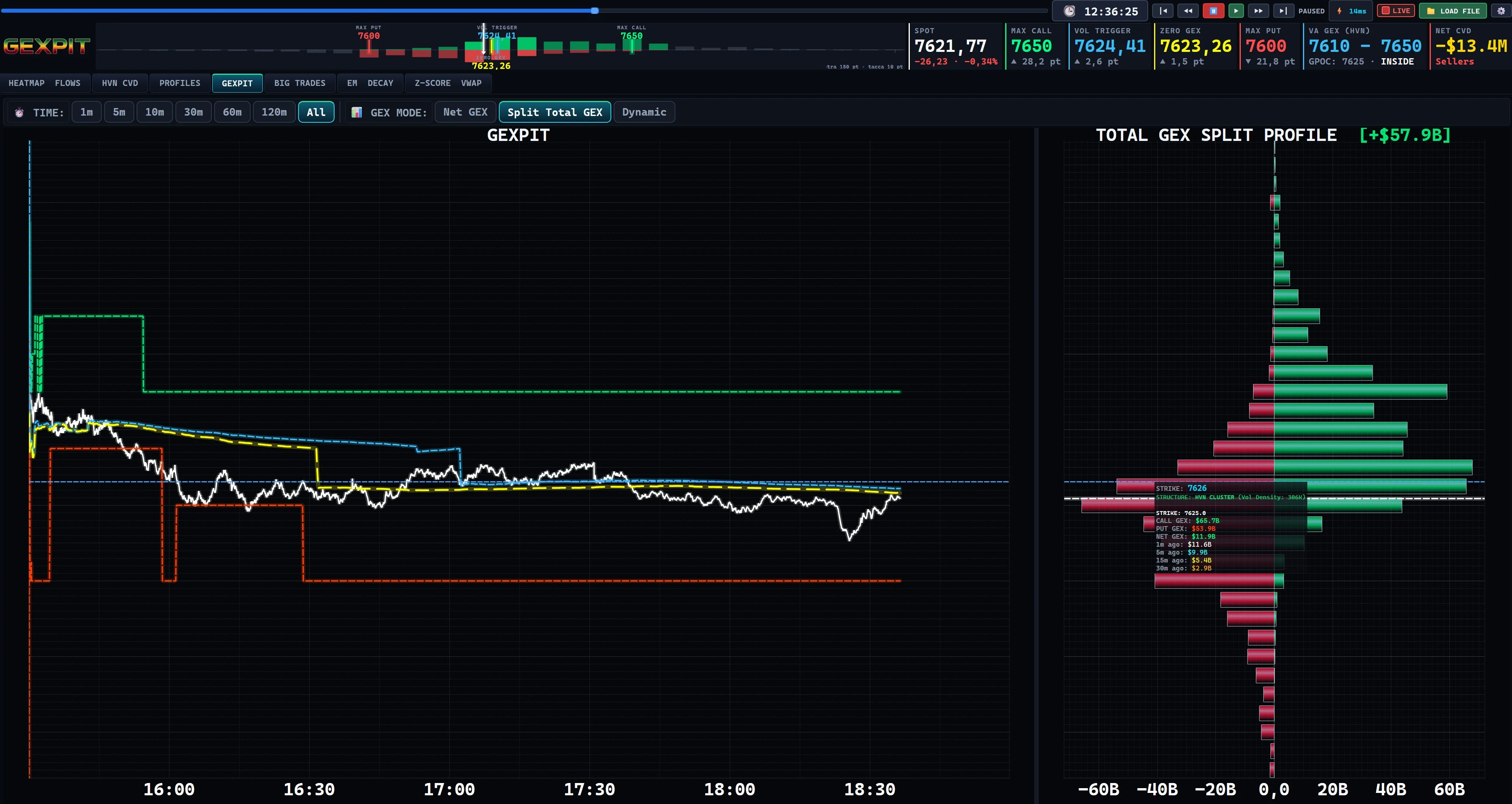
Opposing Call and Put contributions can offset each other in a net total. Separate them to understand what makes up the profile, or explore the other sensitivity measures below.
Select a view. Click or tap the image to enlarge it.
Compare the net profile with spot and the plotted reference levels. Classic Net GEX retains Gamma at the time each flow contribution was recorded.
Keep Call and Put contributions separate. Two large opposing components can cancel in a net profile; the split view lets you inspect both.
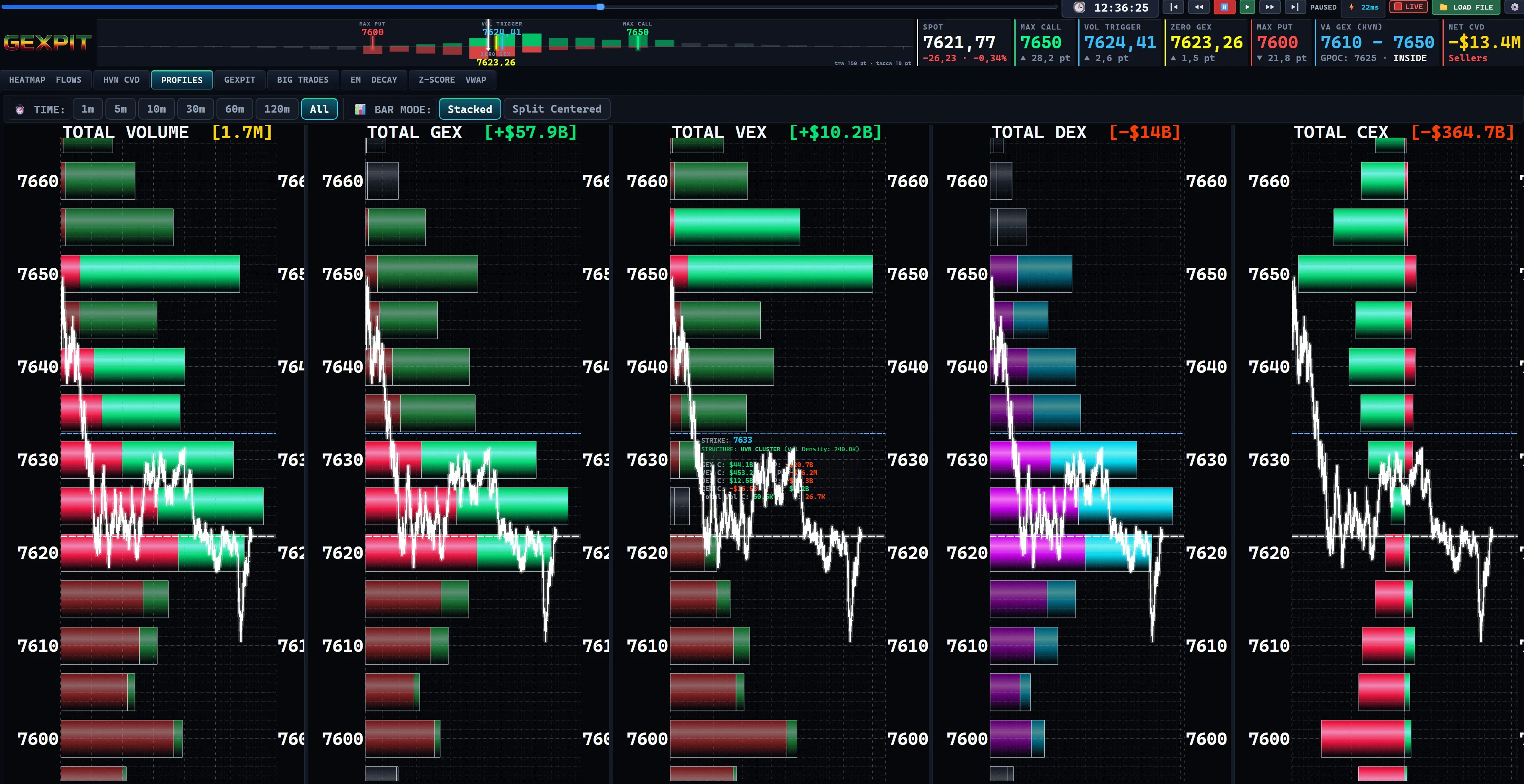
Compare traded Volume with four modeled exposures: GEX (Gamma), VEX (Vega, sensitivity to implied volatility), DEX (Delta, sensitivity to price) and CEX (Charm, change in Delta with time). Synchronized profiles align the strikes; change the time window or separate Call and Put contributions to inspect the differences.
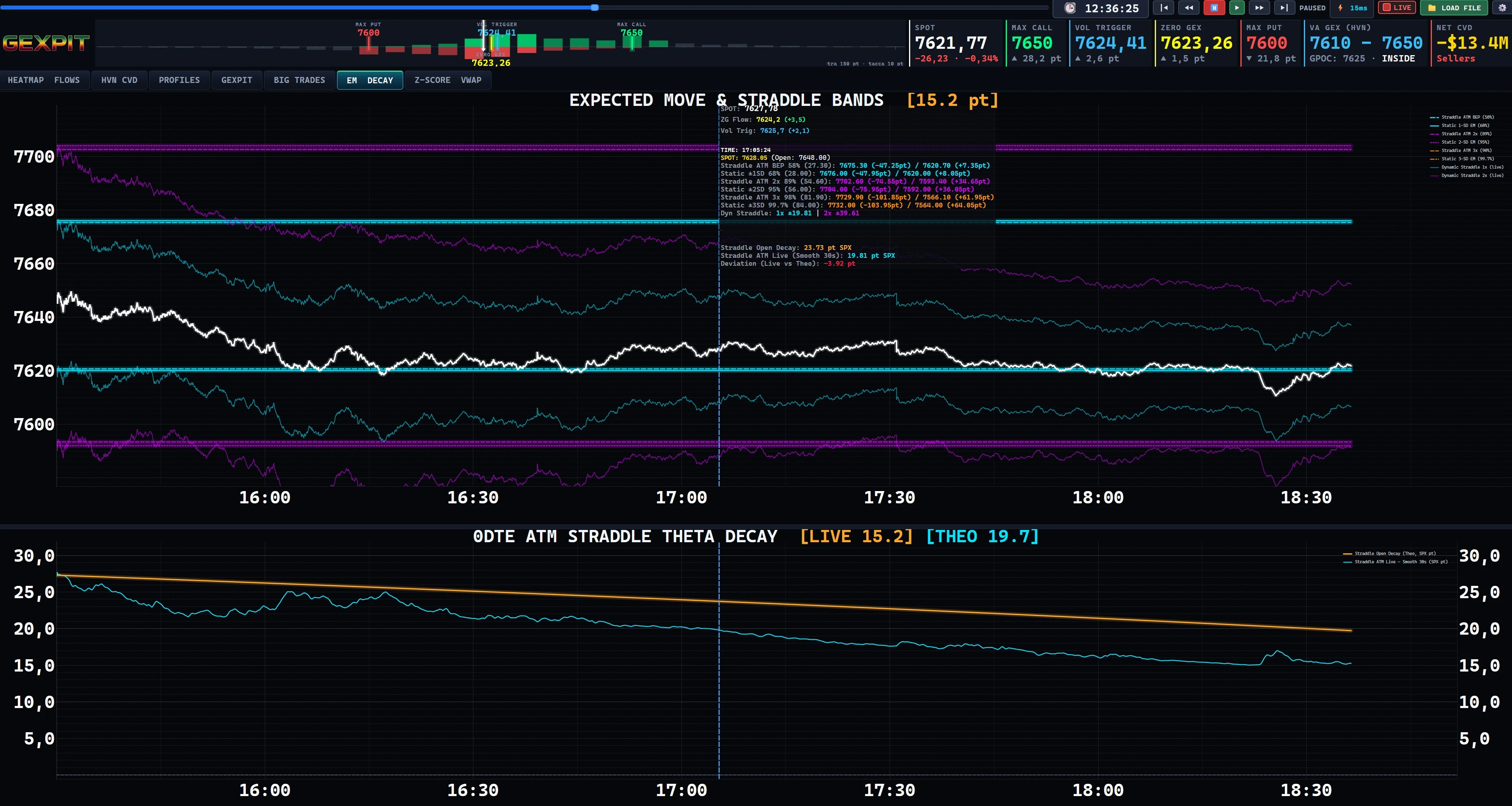
Implied volatility is derived from option prices. These views compare its changes, an estimated price range and the cost of an at the money (ATM) straddle: a Call and a Put at the same strike near spot.
Select a view. Click or tap the image to enlarge it.
Expected Move provides a model-based range reference. The ATM straddle is an option price: Call plus Put. Compare their opening bands, follow the intraday straddle corridor, and check the observed straddle price against theoretical decay as expiry approaches.
A 30-minute Z-score expresses how far current ATM implied volatility (IV) is from its recent average, in standard deviation units. Compare the combined and separate Call/Put readings with volume per minute. Optional OI-VWAP, C-GAMMA, C-VOL and C-DELTA lines add options-derived references. OI-VWAP is synthetic: it is neither an ES futures VWAP nor a measurement of open interest.
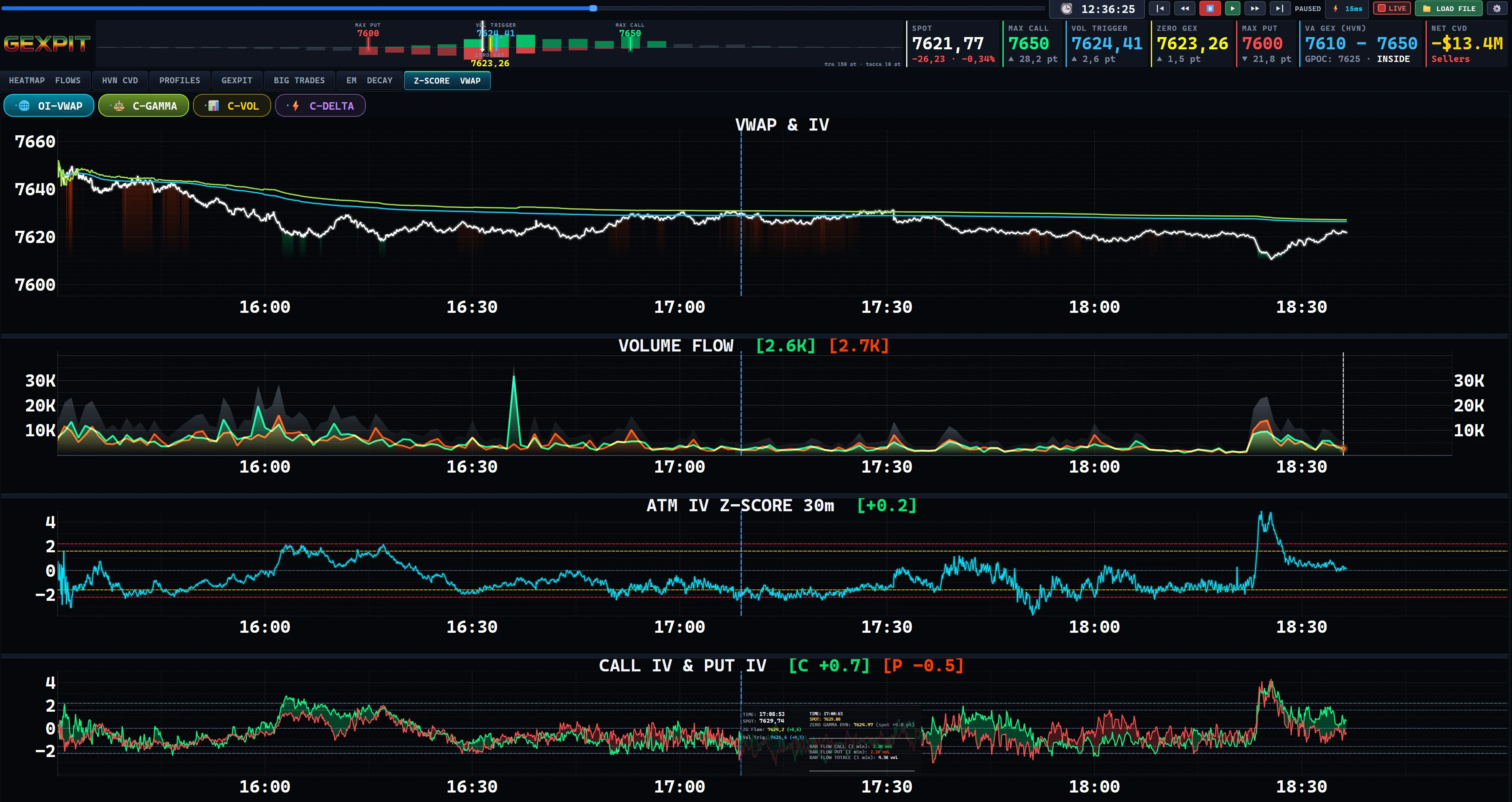
Rewind a recorded session, pause and compare price, flow and Gamma in the same workspace. During live analysis, revisit the available history and return to LIVE when you are ready.
Recorded replay demonstration. Pause or expand the video to inspect the interface.
The GEXPIT Recorder collects IBKR data and writes the local session files. The desktop cockpit reads those files for live analysis and historical replay. Replay at selectable speeds, pause at a point of interest, or revisit an earlier part of the live session. Re-enable LIVE to return to incoming data.
Replay helps you review what was recorded. It is not, by itself, a backtest or proof that a trading strategy is profitable.
Explore live streams, session recordings and platform videos on the GEXPIT YouTube channel.
Use the same SPX options observations to examine different trading questions, with a clear distinction between measured activity and modeled exposure.
Compare flow, modeled exposure, implied volatility and straddle behavior as context for your options analysis and session review.
Use SPX options activity as an additional layer of context for your futures decisions. GEXPIT's SPX views do not replace an ES order book or ES execution feed.
Volume and prices come from the data feed. Buying and selling classifications are estimates. Gamma exposure and reference levels come from models. Call/Put activity alone cannot reveal a participant's complete position, including trades with several option legs. Use these layers to inform your analysis; they do not guarantee a trade outcome.
Begin with price and volume. Add the recent activity comparison, then explore Gamma and replay as you become familiar with the tools.
Leave your email. Selected participants receive an invitation and activation instructions.
Follow the setup instructions for live analysis or open a compatible recorded session for replay. Check the requirements in the FAQ before applying.
Start with Combined Volume. Locate price and active strikes, then compare the daily and rolling profiles. Use the explanatory videos for a closer walkthrough.
Use your 21 days to assess the views, controls and replay. Share practical feedback about your experience with the developer.
If invited, explore price and options activity, compare the views and review recorded moments. Your 21 free days begin when your license is activated.
Discord access is reserved for invited participants. There is no public server signup.
Security notice. GEXPIT will never ask for your broker password by e-mail, chat or phone, never sends software as an e-mail attachment, and is downloaded only from your account area on gexpit.com or from a personal link on api.gexpit.com that we send you ourselves. If you receive anything else in our name, do not open it: write to info@gexpit.com.
21 days free
Leave your email to be considered for an invitation.
Requirements. A physical Windows computer with a TPM 2.0 security chip enabled; virtual machines and virtual servers are not supported (remote access to your own computer is fine). An Interactive Brokers account with your own market data subscriptions. GEXPIT Recorder asks you to sign in each time it starts. Short updates of our server may happen any night outside US market hours (a few minutes); longer planned maintenance happens only at weekends, in a window announced in advance.
Platform: GEXPIT runs locally on a compatible Windows PC. The website works on mobile; the analytical application runs on your PC. Check hardware suitability during onboarding, especially if you run other trading applications alongside it.
Live analysis: the GEXPIT Recorder connects to Interactive Brokers through TWS or IB Gateway. You need an Interactive Brokers account that allows API connections (IBKR Pro), with the market data subscriptions in your own name. It records local files that the GEXPIT cockpit reads. IBKR and market data fees are separate from GEXPIT access.
Replay: open compatible session files recorded by the Recorder, without an active broker connection. A historical data library is not included as a promise of early access.
Your application is received for consideration. If selected, you will receive an invitation with activation instructions by email. Applying does not grant immediate access. The 21-day period starts when your license is activated.
Use the platform and share concrete observations: setup difficulties, unclear controls or readings, reproducible bugs, or suggestions tied to your workflow. You do not need to find a bug or invent a feature to contribute. Honest, specific feedback is what matters.
Free access ends after 21 days. Practical feedback is expected. Extensions are at the developer's discretion and depend on your feedback and on testing needs. Contributing does not guarantee an extension. Paid subscriptions will follow the invitation phase; pricing and terms will be provided before purchase.
Both can use SPX options activity as market context. GEXPIT analyzes SPX options; it is not an ES order-book feed. An options structure and a futures position have different exposures and risks, even when informed by the same market reading.
No. Start with installation and a guided reading of one view. Instructions and explanatory videos help you understand the interface and how to examine 0DTE market activity. The tools still require learning; no indicator removes trading uncertainty.
Yes. Open compatible session files recorded by the GEXPIT Recorder for historical replay without an active broker connection. During live analysis, you can rewind the available session history and return to LIVE. An existing historical data library is not promised as part of early access.
Discord is reserved for invited participants. Access information is shared with invitees; there is no public invite link on the website.
No. GEXPIT is an analytical platform. Flow classification and exposure models have assumptions and limitations. A chart observation is not proof of a profitable trade, and the platform does not guarantee outcomes.
Apply for an invitation to explore the platform for 21 days, starting at activation.
Apply for Early Access